Help Centre

How to use Seatly

Step-by-step guides for setting up and managing your venue. Can't find what you need? Chat with us on Telegram or email help@seatly.co.za.

New to Seatly? Follow the complete onboarding presentation and downloadable guide. Core includes full guidance, help files and AI help agent access. Growth adds two online sessions of 30 minutes each; Scale adds three. Arrange sessions via hello@seatly.co.za.

Setting up your venue

Change opening & closing times

Your service times are set as shifts — one or more service periods per day. The booking agent only accepts reservations that fall inside a shift. Most venues have a single all-day shift; split-service venues add separate lunch and dinner shifts, and the gap between them is not bookable.

  1. 1From the dashboard, click Settings in the top navigation.
  2. 2Open the Shifts section.
  3. 3Click + Add shift on a day and give the shift a name (e.g. Lunch).
  4. 4Set its start and end times using the time pickers.
  5. 5To close a day entirely, remove all of its shifts — the day will show Closed — no shifts.
  6. 6Click Save — changes take effect immediately.
Open Settings Shifts
💡

Your booking agent will automatically tell guests your service times if they ask, and will refuse bookings outside of them.
Shoulder times

A shoulder time (also called a last booking time) prevents bookings from being accepted too close to the end of a shift. For example, if your dinner shift ends at 22:00 and you need 2 hours for a sitting, set last booking at 20:00.

  1. 1Go to Settings Shifts.
  2. 2On the shift, set the Last booking field to the latest time a booking may start.
  3. 3Leave it blank to allow starts right up to the end of the shift — bookings must still finish inside the shift, so long menus cut off earlier automatically.
  4. 4Click Save.
Open Settings Shifts
💡

The last booking time applies across all resources for that shift. For per-resource buffer time, see Resource buffer time below.

Last booking time

The Last booking time on each shift controls the latest start time for any booking in that shift. Setting this ensures no booking can start too late for your kitchen or staff.

  1. 1Settings Shifts the Last booking field on the shift.
  2. 2Enter the time of your final acceptable seating (e.g. 20:30).
  3. 3Click Save.
💡

If you have events or tasting menus with fixed durations, set last booking early enough that the event ends before the shift does.

Link to Google Maps

Add your Google Maps link so guests can get directions directly from the booking agent.

  1. 1Go to Settings Venue details Maps URL.
  2. 2Paste your Google Maps link and click Save.
Open Settings Venue details

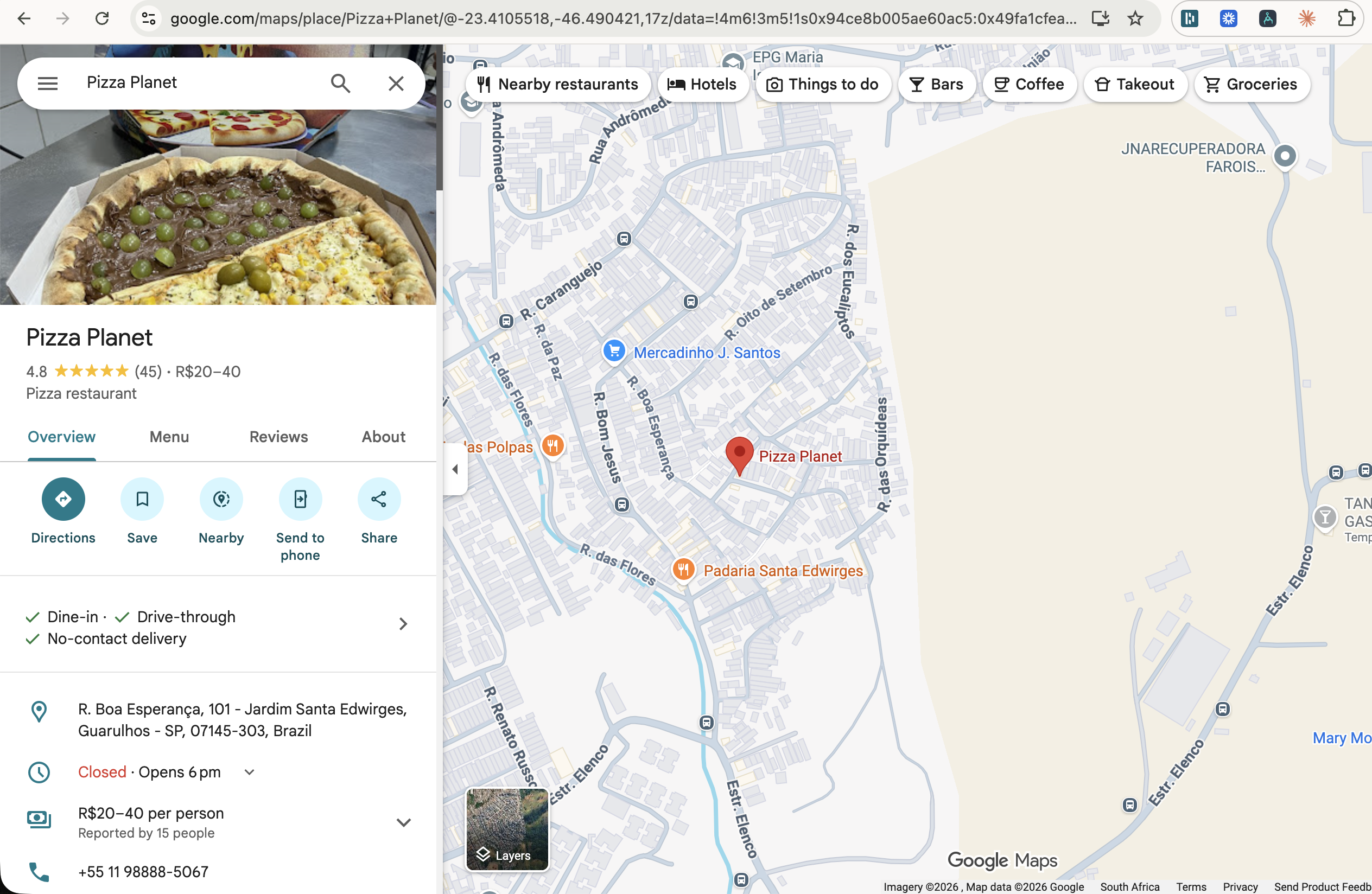
How to find your Google Maps link

  1. 1Open Google Maps on your computer or phone.
  2. 2Search for your venue by name.
  3. 3Click your venue in the results to open the info panel.
  4. 4Click Share (the chain-link icon).
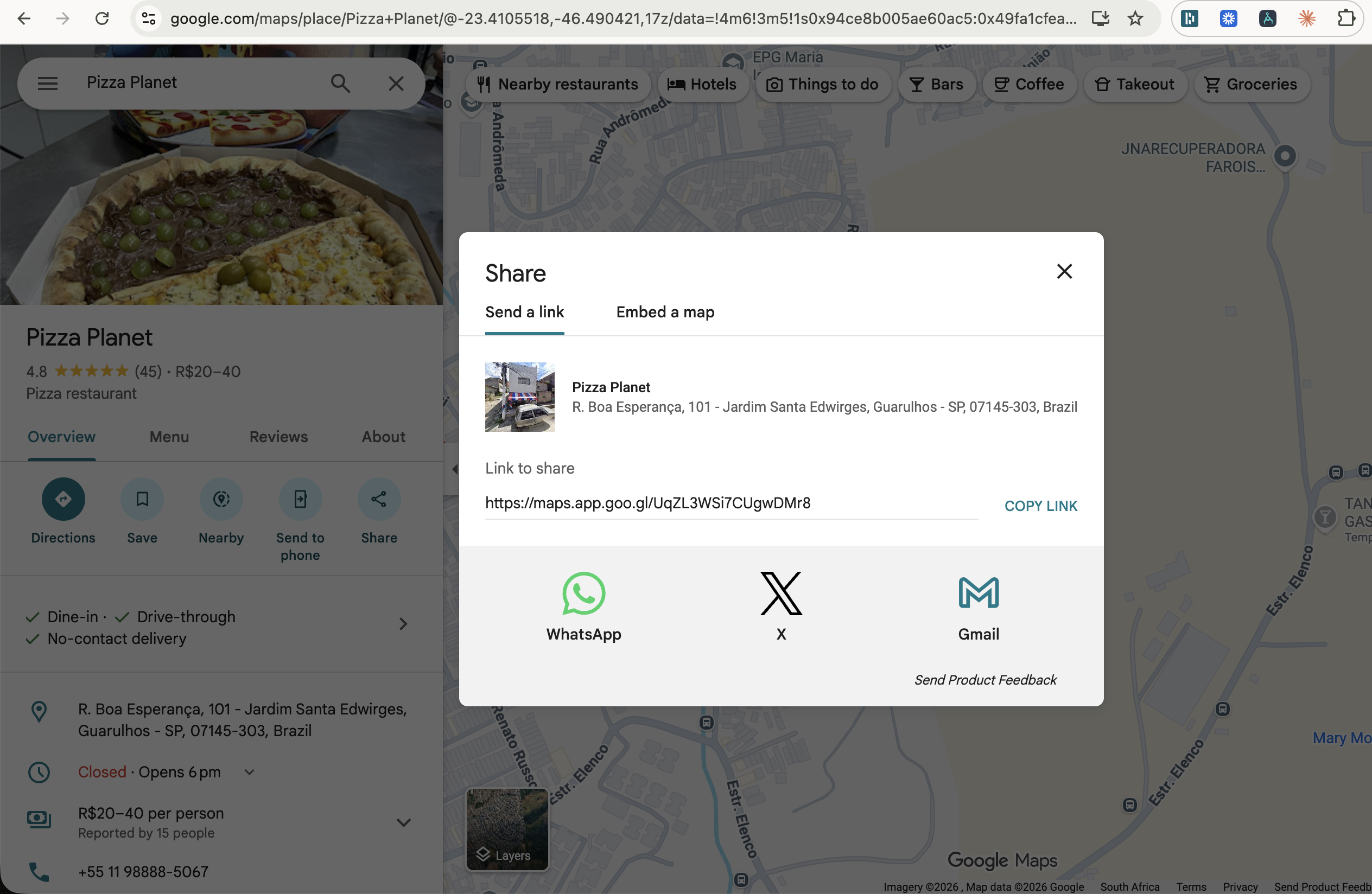
  5. 5Select Copy link.
  6. 6Paste this URL into the Maps URL field in Seatly.
portal.seatly.co.za
Step 1 — Find your venue on Google Maps and click the Share button

Step 1 — Find your venue on Google Maps and click the Share button

portal.seatly.co.za
Step 2 — Copy the link from the Share dialog

Step 2 — Copy the link from the Share dialog

💡

Make sure you copy the short share link (maps.app.goo.gl/…) — not the full browser URL which can be very long.

Add answers to Guest FAQs

Guest FAQs are the venue-approved answers the Seatly AI can give in natural language. Add policies and recurring questions such as parking, corkage, accessibility, children, dress code or private bookings. The AI uses your saved wording rather than inventing an answer.

  1. 1Go to Settings Guest FAQs.
  2. 2Enter the guest's question and write the answer exactly as you want it communicated.
  3. 3Choose a category and optionally add comma-separated alternative wording, such as BYO, own wine and corkage.
  4. 4Click Add FAQ. Use the switch beside an existing FAQ to make it active or inactive.
  5. 5Edit an FAQ whenever the policy, price or wording changes.
Open Settings Guest FAQs
💡

Include every important price, limit and condition in the answer. Active FAQs are loaded fresh when a guest asks.

Customise booking confirmations

Add a venue-specific note to every booking confirmation—for example, a welcome message, arrival instructions, dress code, parking advice or house rules. This keeps confirmations in your voice.

  1. 1Go to Settings Guest notes.
  2. 2Enter your wording in Confirmation note.
  3. 3Optionally add your refund or cancellation policy below it so the agent can quote it when guests ask.
  4. 4Click Save guest notes.
Open Settings Guest notes
💡

The confirmation note is separate from the optional 24-hour and 6-hour reminders, which can each use their own custom wording.

Seating areas

Create seating areas

Seating areas group resources by location (e.g. Inside, Outside, Private Room, Bar). Guests can request a preferred area when booking and the agent will try to accommodate them.

Seating areas are created automatically when you assign an area name to a resource — there is no separate "create area" step.

  1. 1Go to Settings Resources.
  2. 2Click Edit on any resource (or Add resource for a new one).
  3. 3Type a Seating area name — e.g. Outside.
  4. 4Click Save.
  5. 5All resources with the same area name are automatically grouped together.
Open Settings Resources
💡

Keep area names consistent — "Outside" and "outside" are treated as different areas. Use capitalised names to keep it tidy.

Assign resources to a seating area

Any resource can be assigned to a seating area by setting the Seating area field.

  1. 1Settings Resources Edit the resource.
  2. 2Enter the Seating area name exactly as used on other resources.
  3. 3Save.
💡

A resource without a seating area set will be assigned to any area request as a fallback.

Close a seating area

Close every resource in an area without editing each one individually. Closures can repeat for a weekly shift or apply only to a selected date range.

  1. 1Go to Settings Seating area closures.
  2. 2Choose Recurring for a weekly shift, or Date range for a temporary closure.
  3. 3Select the seating area and the applicable shift or dates.
  4. 4Add an optional internal reason and click Add closure.
  5. 5Pause, resume or remove the closure from the same section.
Open Settings Seating area closures
⚠️

A closure stops new availability; it does not cancel bookings that already exist in that area.

Events & Menus

Events access and approval

Resources + Events and Events-only can be set up during onboarding. Business verification approval is required for guest payments. Existing venue access and Superadmin controls remain in place.

  1. 1Open Dashboard Events and choose Resources + events or Events only.
  2. 2A venue administrator reviews and accepts the current Events pricing and terms. Staff and host users cannot accept them.
  3. 3Seatly checks the venue, its Yoco connection and the saved Paystack fee-billing mandate.
  4. 4Once access is approved and the payment checks are complete, the venue can publish paid events within its sales limit.
Open Dashboard Events
💡

If Seatly updates the Events terms, a venue administrator must accept the new version before anyone can create or edit events.

Create and publish an event

Set the event up as a draft first so you can check every guest-facing detail before tickets go on sale. You can return to the draft and edit it as often as needed.

  1. 1Before creating a paid event, confirm that Events access is approved, the current Events terms are accepted by a venue administrator, and both Yoco and Seatly fee billing show ready.
  2. 2Open Dashboard Events and click + New event.
  3. 3Add the event name, event type, age restriction, capacity, doors-open time, start and end time, and the dates when ticket sales should open and close. Event type helps guests find relevant events.
  4. 4Choose one of the two controlled-pilot models: Ticket-only for individual admission across the whole venue, or Event plus regular resources when part of the venue remains open for ordinary service.
  5. 5Add each per-guest ticket price category separately. For Event plus regular resources, allocate the resources used by the event; those resources are removed from ordinary availability while every unallocated resource stays open for regular bookings and menu sales.
  6. 6Write a clear description covering what guests can expect, the programme, dress code and accessibility information. Use the separate Age restriction field for any minimum age.
  7. 7Confirm the venue name, address and Google Maps link that guests should use.
  8. 8Upload and position the cover image, then add its image description.
  9. 9Add event-specific terms, including entry conditions and restricted items. Confirm that the venue's public email or phone number is correct so guests can submit refund requests.
  10. 10Ticket-only events close ordinary resource bookings across the whole venue. Event plus regular resources blocks only the resources allocated to the event; all other resources remain available and guests must acknowledge the event notice before completing an ordinary resource booking.
  11. 11Leave Publish immediately off and click Create event. Review the public event page, then edit the event and publish when everything is ready.
Open Dashboard Events

Prepare the cover image

The cover is cropped to fit event cards and wide page banners. Use these guidelines so the same image works in both places:

  • Recommended size: 1600 × 900 pixels (16:9 landscape).
  • Minimum size: 800 × 450 pixels.
  • File type: JPG, PNG or WebP, up to 5 MB.
  • Keep faces, logos and important wording near the centre. Avoid placing important details against an edge.
  • Do not put essential event information only inside the image; repeat it in the event name and description.
  1. 1Choose the image in the Event cover image section.
  2. 2Check the 16:9 crop preview. Move the horizontal and vertical focus sliders until the important subject stays visible.
  3. 3Add a short image description for guests using screen readers, for example: Jazz trio performing on a candlelit stage.
  4. 4To replace a cover, choose a new file and save the event. To remove it, click Remove image and save.
💡

Photographs usually work better than posters. Posters often contain small text that becomes unreadable on mobile event cards.

Before publishing

Check the event name, type, age restriction, doors-open time, dates, ticket prices, allocations, sales window, address, terms and cover preview. For paid tickets, Yoco and Seatly fee billing must both show ready and the event must remain within the venue's approved sales limit.

💡

For an age-restricted event, every purchaser must confirm that all attendees meet the minimum age. The public page and tickets warn that valid photo ID may be required at the entrance. Door staff should check ID where appropriate.

⚠️

Choose the correct age restriction before selling tickets. It cannot be introduced or changed after tickets have been issued because earlier purchasers did not accept it.

⚠️

Once tickets have sold, prices, dates and other contractual details are protected. Use Postpone to move the event date, or Cancel event to start the guest-notification and refund-review workflow.

Manage orders and attendees

  1. 1Open Dashboard Events, then choose Orders & attendees.
  2. 2Search by guest name, email, phone or booking reference, or filter by event and order status.
  3. 3Open View ticket when you need to inspect a confirmed guest ticket.
  4. 4Use Resend email to send a confirmed ticket again. Use Cancel hold only for an unpaid or expired order; this releases its tickets back into availability.
  5. 5For resource-based events, guests still pay per guest ticket. Seatly shows the automatically assigned resource; choose Move resource to place the party at another free, suitable resource from the same ticket category.
  6. 6Use Export attendees CSV for the confirmed attendee list. The export follows the selected event filter.

Postpone, cancel and review refunds

  1. 1Use Postpone on the event, enter the new start and end time, and write the reason guests should see. Review the details before confirming; Seatly queues ticket-holder notifications.
  2. 2If a postponed event needs another date or time, use Change date/time and notify ticket holders again. Use Resume sales only once the corrected time is ready to go on sale.
  3. 3Use Cancel event to review affected orders, tickets and the potential refund total. Add the guest-facing reason and confirm only when you are ready to notify ticket holders.
  4. 4Guests can submit an eligible request securely from their ticket page. New guest requests appear against the order in Tickets & refunds, with the guest's reason. Seatly emails the guest to confirm that the request was received.
  5. 5Review the request. Approve the full amount unless a reasonable cancellation charge was clearly disclosed and is permitted by the policy; rejected requests require a written reason.
  6. 6Cancellation creates approved refund tasks; it does not move money automatically. The venue must submit each refund through Yoco within 24 hours. Overdue tasks are highlighted and escalated.
  7. 7Open Tickets & refunds for that event, use the Yoco payment reference, amount and date to locate the sale in Yoco Sales History, submit the approved amount, then return to Seatly and record the Yoco refund reference.
💡

Seatly emails the guest when the venue approves or rejects the request and again when a completed Yoco refund is recorded. These emails report the Seatly workflow status; only Yoco and the guest's bank can confirm when funds appear.

⚠️

Do not mark a refund completed in Seatly until the refund has actually been completed in Yoco.

Standard Seatly Events refund policy

Every event uses at least the following policy (version 2026-08-10-v3). Event-specific terms may disclose a permitted reasonable voluntary-cancellation charge or provide more generous terms, but may not remove the venue-cancellation, postponement or legal rights below.

  • The venue is the ticket seller and merchant of record. Ticket payments settle directly into the venue's connected Yoco account.
  • If the venue cancels the event, every paid ticket must be cancelled and the guest must receive a full refund of the advertised ticket amount. Seatly's venue fee may not be deducted from the guest's refund.
  • The venue must submit every event-cancellation refund through Yoco within 24 hours after cancelling. Yoco and the guest's bank control when the money appears in the guest's account.
  • If the event is postponed, the ticket remains valid for the new date. A guest may instead request a full ticket refund within 14 calendar days after the postponement notice, but no later than the rescheduled event start.
  • Unless the event page gives the guest more generous terms, a guest may request a voluntary cancellation and refund until one working day before the original event start. The ticket is cancelled when the completed Yoco refund is recorded.
  • For this policy, a working day excludes Saturdays, Sundays and South African public holidays.
  • For a voluntary cancellation, the venue may deduct only a fair and reasonable cancellation charge that was clearly disclosed and is permitted by law. If no charge was disclosed, the default refund is the full advertised ticket amount.
  • Requests made within one working day of the event and no-shows do not receive an automatic refund, but the venue must still honour any right the guest has under applicable law.
  • The venue may not charge a cancellation fee where the guest cannot attend because of the death or hospitalisation of the person for whom the ticket was booked.
  • A paid ticket may not be cancelled without the corresponding approved refund. Recording the completed Yoco refund cancels and invalidates that ticket, including where a permitted disclosed cancellation charge resulted in a partial refund. A complimentary ticket can be cancelled without money changing hands.
  • Refunds must be returned through Yoco to the original payment method where Yoco supports it. The guest should provide the Seatly booking reference when requesting help.
  • Event-specific terms may disclose a permitted reasonable voluntary-cancellation charge and may give guests more rights, but may not remove the venue-cancellation or postponement rights above, or any right provided by applicable consumer law.
  • Seatly does not hold ticket proceeds and cannot issue the refund on the venue's behalf. The venue remains responsible for refunds, chargebacks and having sufficient Yoco funds available.
  • To the fullest extent permitted by law, Seatly is not liable for a venue's refund decision, refusal, failure or delay; insufficient venue funds; Yoco or bank processing delays or failures; chargebacks; or losses arising from an event cancellation, postponement or refund, except to the extent directly caused by Seatly's gross negligence or wilful misconduct.
  • The venue indemnifies Seatly and its personnel against claims, losses, costs and liabilities arising from the venue's event, refund obligations, failure to refund, insufficient Yoco funds or breach of this policy, except to the extent caused by Seatly's gross negligence or wilful misconduct. Nothing in this policy excludes liability or consumer rights that cannot lawfully be excluded.

Check in guests on event day

  1. 1Open Dashboard Events and click Scan tickets.
  2. 2Allow camera access and scan the QR code on the guest's Seatly ticket, or open the ticket's check-in link. Seatly blocks admission before the event's saved doors-open time.
  3. 3Confirm the guest, event and remaining admission quantity before checking anyone in. For age-restricted events, check valid photo ID where required.
  4. 4For a group arriving separately, check in only the number arriving now. Seatly keeps the remaining admission available for the rest of the group.
  5. 5If a ticket is cancelled, refunded, belongs to another venue or has no remaining admission, do not admit it and ask a venue manager to review the order.

Connect Yoco for Events

Connect the venue's permitted Yoco account for the environment you are using. Guest payments follow that connection directly.

  1. 1Log into the updated Yoco web app.
  2. 2Follow the Checkout API instructions linked from Settings Payments in the current Yoco web app.
  3. 3Copy the appropriate secret key. Use a test key for staging; keep live credentials in production only.
  4. 4In Seatly, open Settings Payments, paste the permitted secret key and click Connect Yoco.
Open Settings Payments
⚠️

Never paste a live Yoco key into staging or share secret keys in email or chat.

💡

If several stores under one company legitimately settle into the same Yoco merchant account, connect it once to the primary venue and ask Seatly to link the other stores. A Seatly superadmin must verify the common ownership; do not paste the same secret key into every venue.

Events fees, refunds and settlement

There is no separate Event ticket fee. Each confirmed Event booking costs R10 on Starter or counts as one confirmed booking toward the monthly package.

The venue remains responsible for delivery, cancellations, guest refunds and chargebacks. If the venue cancels an event, it must submit full refunds in Yoco within 24 hours.

⚠️

If an older Events screen shows a separate ticket fee or conflicting terms, ask the Seatly team to review it before proceeding.

Create a menu or resource-booking special

Menus and specials are offered to guests by the booking agent when they reserve a resource. They can require upfront payment, such as for a tasting menu, or simply be informational. Use Dashboard → Events for ticketed events.

  1. 1Go to Settings Menus & Specials.
  2. 2Click + Add menu / special.
  3. 3Fill in the name, description, and price per person.
  4. 4Set the date range the event runs (start date end date).
  5. 5Choose the type: Menu, Experience, or Special.
  6. 6Set min guests and max guests if the event has limits.
  7. 7Set duration in minutes (e.g. 180 for a 3-hour tasting). This controls when the resource is freed.
  8. 8Tick Payment required to confirm booking if guests must pay upfront.
  9. 9Select which resources this event applies to — leave all unticked to offer it on every resource.
  10. 10Optionally tick the shifts it is available during — none ticked means all shifts.
  11. 11Click Save.
Open Settings Menus & Specials
💡

If a menu or special only runs on certain dates, set the start and end date to exactly those days. The agent will only offer it during that period.

Assign resources to a menu or booking special

Menus and booking specials can be restricted to specific resources. This is useful for private dining rooms, spa beds, bicycles or set menus available only at certain seatings.

  1. 1When creating or editing a menu or special, scroll to the resource selection.
  2. 2Check the resources where this event is available.
  3. 3Click Save.
Open Settings Menus & Specials
⚠️

Leaving every resource unticked means the menu applies to all resources. Ticking specific resources restricts it — guests booking other resources won't be offered it, and if none of the selected resources can accommodate the party, the agent explains why instead of offering the menu.

Require upfront payment for a resource booking

Once Yoco is connected, you can require guests to pay upfront when booking a specific menu or special. Funds go directly to your Yoco account.

  1. 1Go to Settings Menus & Specials and create or edit a menu or special.
  2. 2Toggle Require payment on.
  3. 3Set the price per person.
  4. 4When a guest books, the agent sends them a Yoco payment link.
  5. 5The booking is automatically confirmed once payment is complete.
Open Settings Payments
⚠️

The venue receives funds directly and is responsible for refunds. Ticketed Events have separate approval, fee-billing and settlement rules described above.

Resources

Create or edit a resource

Resources are the individual items or spaces guests can book in Seatly—for example, a table, spa bed, treatment room, bicycle or court. Each one has minimum and maximum guest limits, an optional area, and availability rules.

  1. 1Go to Settings Resources.
  2. 2Click Add resource (or Edit on an existing resource).
  3. 3Enter a resource name (e.g. Table 4, Spa Bed 2, Bicycle 6 or Court 1).
  4. 4Set Min covers and Max covers. Max covers is also the resource's capacity.
  5. 5Optionally set a seating area and buffer time.
  6. 6Click Save.
Open Settings Resources
💡

Deactivating a resource removes it from availability without deleting it—useful when a table is under repair or a bicycle is being serviced.

Set min & max covers

You can set a minimum party size for a resource (e.g. a 10-seat table that requires at least 6 guests) and a maximum. The maximum is also saved as the resource's capacity.

  1. 1Settings Resources Edit the resource.
  2. 2Set Min guests — the smallest party that can book this resource.
  3. 3Set Max guests — the largest party and the resource's capacity.
  4. 4Click Save.
Open Settings Resources
💡

The booking agent automatically matches party sizes to resources. A party of 3 won't be shown an 8-seat table if Min guests is set to 6.

Resource buffer time

Buffer time is a gap added after each resource booking before the next booking can start— useful for cleaning, resetting a room or servicing equipment.

  1. 1Settings Resources Edit the resource.
  2. 2Set Buffer time in minutes (default is 10 minutes).
  3. 3Click Save.
💡

If a resource is used for 90 minutes and needs 15 minutes to reset, set the booking duration to 90 minutes and the buffer to 15.

Combine resources

Create a larger bookable arrangement from two or more individual resources—for example, adjoining tables for a larger party.

  1. 1Go to Settings Resources and scroll to Combined Resources.
  2. 2Click + Add combined resource.
  3. 3Give the arrangement a clear name and select at least two resources.
  4. 4Set its minimum and optional maximum guests, then click Create combined resource.
Open Settings Resources
💡

The combined capacity is calculated from its individual resources. Seatly keeps every member resource unavailable while the combined booking is active.

Blocking

Block a date

Block an entire day to prevent any bookings — useful for private events, public holidays, or maintenance days.

  1. 1Go to Settings Blocked dates.
  2. 2Click Add blocked date.
  3. 3Select the date.
  4. 4Enter a reason (optional — guests won't see this, it's for your reference).
  5. 5Click Save.
Open Settings Blocked dates
⚠️

Blocking a date cancels future availability but does not automatically cancel existing bookings on that date. Review and cancel those manually.

💡

To unblock a date, click Remove next to the entry in the Blocked dates list.

Block a resource

Block a specific resource for a set time period—useful when it is reserved for a walk-in guest, under repair, being serviced or held for a VIP.

  1. 1Go to Settings Blocked resources.
  2. 2Click Block a resource.
  3. 3Select the resource, date, start time, and end time.
  4. 4Enter a reason (optional).
  5. 5Click Save.
Open Settings Blocked resources
💡

Resource blocks only affect availability during the specified window. The resource returns to normal availability outside those hours.

Booking channels

Email bookings

Guests can make a reservation by emailing bookings@seatly.co.za and mentioning your venue name. The Seatly AI agent reads the email, handles the booking conversation, and replies automatically — no staff involvement needed.

What to tell your guests

Advertise this address on your website, social media, or printed menus:

bookings@seatly.co.za

Ask guests to mention your venue name in their email—for example, "I'd like to book at The Harbour House". This is how the agent knows which venue to book.

How it works

  1. 1Guest emails bookings@seatly.co.za mentioning your venue name.
  2. 2The agent replies asking for any missing details (date, time, party size, name, phone, dietary requirements) — all in a single email.
  3. 3Guest replies with the information.
  4. 4The agent confirms availability and creates the booking.
  5. 5You receive an instant notification via Telegram (if configured).
  6. 6The booking appears in your dashboard immediately.
💡

Unlike WhatsApp, email bookings ask for all details in one reply — guests don't have to answer multiple follow-up messages.

View your booking email address in Settings Booking channels

WhatsApp bookings

Seatly provides a shared WhatsApp booking number. Guests message the number, mention your venue name, and the AI agent handles the entire booking conversation in real time.

Every location receives a friendly link such as seatly.co.za/wa/your-venue. You can shorten the friendly name in Settings → Booking channels before sharing it widely.

For a dated promotion or menu, generate a campaign link in the same section. Seatly keeps the friendly address and writes the venue, date, time and optional menu into the request for the guest.

💡

Use the generated WhatsApp link in an Instagram or Facebook post so guests can move straight from the offer into the correct booking conversation.

Add web booking to your website

Guests can book through a browser without starting on WhatsApp. Seatly checks live availability and sends the WhatsApp confirmation automatically.

  1. 1Go to Settings Web Booking.
  2. 2Copy the Direct booking link if you want a button or link on your website.
  3. 3Or copy the embed code and paste it into your website to display the booking form on the page.
  4. 4Open the link yourself and complete a test booking before publishing it.
Open Settings Web Booking
💡

The web form works on mobile, desktop and tablet and supports menu selection and special requests.

Bookings

Cancel a booking

Cancel any upcoming booking from the dashboard. The guest will receive a cancellation notification.

  1. 1Go to the Dashboard.
  2. 2Find the booking in the list (search by name, phone, or reference).
  3. 3Click Cancel next to the booking.
  4. 4Confirm the cancellation.
Open Dashboard
⚠️

If the guest paid a deposit, you must refund them manually via your Yoco Portal. Seatly cannot process refunds.

Create a booking (walk-in or phone call)

Create a booking directly from the portal when a guest calls or walks in — no need to go through the booking agent.

  1. 1Click New Booking in the top right of the Dashboard.
  2. 2Enter the guest name and phone number.
  3. 3Select the date and time.
  4. 4Enter the party size.
  5. 5Choose a resource (or leave blank to auto-assign).
  6. 6Click Create Booking.
Open Dashboard New Booking
💡

Manual bookings are marked as confirmed immediately — no payment or agent interaction required.

Edit a booking

Change a booking's date, time, or party size at any point before the booking starts.

  1. 1Go to the Dashboard and find the booking.
  2. 2Click Edit next to the booking.
  3. 3Update the date/time, party size, or special notes.
  4. 4Click Save.
Open Dashboard
💡

When you change the date or time, Seatly automatically checks availability for the new slot. If no suitable resource is free, the edit will not save.

Configure the waitlist

When a requested time is fully booked, Seatly can offer the guest a place on the waitlist and notify them automatically when a suitable resource becomes available.

  1. 1Go to Settings Waitlist and switch Enable waitlist on.
  2. 2Optionally set the maximum number of pending waitlist entries.
  3. 3Set an Offer hold time if the first guest should have only a limited number of minutes to respond.
  4. 4Click Save waitlist settings.
  5. 5Manage pending entries from the Dashboard when a space becomes available.
Open Settings Waitlist
💡

Leave the maximum size blank for an unlimited list and the hold time blank if an offer should not expire automatically.

Review enquiries requiring venue help

When Seatly cannot complete a request safely—such as an exception that needs venue approval—the agent records an enquiry, notifies the venue and tells the guest that the venue has been notified.

  1. 1Open Enquiries from the dashboard navigation.
  2. 2Review the requested date, time, party size, guest contact details and the reason the booking was blocked.
  3. 3Check the Email, Telegram and Dashboard-saved badges to see how the venue notification was delivered.
  4. 4Contact the guest, then click Mark followed up.
  5. 5Archive completed items, or reopen them if more action is needed.
Open Enquiries
💡

The dashboard keeps the enquiry even if an email or Telegram notification fails, so the venue still has a follow-up record.

Guests & marketing

Manage your guest list

The Guests page combines booking history, contact details, allergies, internal notes and marketing tags in one venue-owned list.

  1. 1Open Guests from the dashboard navigation.
  2. 2Search or filter the list, then open a guest to review their booking history.
  3. 3Edit contact or dietary information, add internal notes, and tag a guest as Regular or VIP.
  4. 4Use Add guest for an individual contact or Import CSV for a larger list.
  5. 5Use Download CSV to export the currently filtered guest list.
Open Guests
⚠️

Only market to guests whose applicable WhatsApp or email consent is recorded. The Marketing page filters recipients according to the selected channel.

Customise guest reminders

Seatly can send a WhatsApp reminder 24 hours before a booking and an optional second reminder 6 hours before. Each can use Seatly's standard wording or your own voice.

  1. 1Go to Settings Guest reminders.
  2. 2For the 24-hour reminder, enable either Standard reminder or Custom reminder.
  3. 3If using Custom reminder, write and preview your message. Seatly appends the booking details automatically.
  4. 4Optionally add one secure button link for a waiver, check-in form or other booking information.
  5. 5Repeat for the optional same-day reminder sent 6 hours before the booking.
  6. 6Click Save reminder settings.
Open Settings Guest reminders
💡

Standard and custom wording cannot both be active for the same reminder. Put a 24-hour reminder link in the dedicated button field; links pasted into message text are removed for WhatsApp template compatibility.

Send a WhatsApp marketing campaign

Use the Marketing page to send approved WhatsApp messages to eligible guests, track delivery and reads, and bring opted-in guests back with timely offers.

  1. 1Open Marketing New Campaign.
  2. 2Name the campaign and choose an approved WhatsApp template.
  3. 3Complete the template fields and check the message preview.
  4. 4Select eligible guests. Seatly limits WhatsApp recipients to guests with recorded opt-in or a valid open conversation window.
  5. 5Review the recipient count, message balance and campaign cost, then confirm the send.
  6. 6Open Campaign History to review sent, delivered, read and failed totals.
Open Marketing
💡

Use Manage vouchers when a campaign template includes a voucher code. Message-pack pricing and the current per-message rate are shown before you send.

⚠️

Do not upload or message a list without the required marketing permission. Seatly records consent per guest and channel.

Save reusable campaign messages

Save wording you use repeatedly—seasonal promotions, holiday notices or menu launches—and load it into the Marketing composer later.

  1. 1Go to Settings Custom messages.
  2. 2Click + Add template, give it a short label and enter the reusable wording.
  3. 3Save it, then open Marketing and choose the custom-message template.
  4. 4Use Load from saved templates to insert the wording into the campaign.
Open Settings Custom messages
💡

Saving the wording does not send anything. You still select recipients, preview and confirm each campaign from Marketing.

Notifications

Add Telegram recipients

You can add one or more Telegram users to receive instant notifications whenever a booking is created, modified, or cancelled — from both the booking agent and the portal.

  1. 1Go to Settings Notifications.
  2. 2Enter the Telegram chat ID of the person you want to add.
  3. 3Add an optional label (e.g. Manager, Host) to identify them.
  4. 4Click Add.
  5. 5Repeat for each person you want to notify.
Open Settings Notifications
💡

Each recipient only receives notifications for your venue — they cannot see or access any other venue's bookings.

⚠️

The person must have previously started a conversation with the Seatly bot on Telegram, otherwise messages will fail to deliver.

Find your Telegram chat ID

Your Telegram chat ID is a unique number that tells Seatly where to send your notifications. Here's how to find it:

Using the Seatly Help Bot

  1. 1Open Telegram and search for @SeatlyHelpBot.
  2. 2Start the conversation, then send /myid.
  3. 3The bot replies with your numeric chat ID—for example, 123456789.
  4. 4Copy that number and paste it into the chat ID field in Settings Notifications.
💡

Starting the Seatly Help Bot is also required before it can deliver booking notifications to you.

Send today's booking report

You can push a summary of all confirmed bookings for today to all your Telegram recipients at any time — useful at the start of a shift or before service begins.

  1. 1Go to Settings Notifications.
  2. 2Scroll to the bottom of the section.
  3. 3Click Send today's report.
  4. 4All recipients will receive a message listing each booking with the time, guest name, party size, resource, and booking reference.
Open Settings Notifications
💡

The report only includes confirmed bookings for today. Cancelled bookings are excluded.

Refunds

Refund a guest via Yoco Portal

All guest payments go directly to your Yoco account. Refunds must be processed through your Yoco Business Portal.

  1. 1Log into the Yoco App at app.yoco.com/hub.
  2. 2Open Sales, then Sales history.
  3. 3Search for the payment using its reference, date, amount or status.
  4. 4Click the transaction to open it.
  5. 5Click Refund and confirm.
💡

The 24-hour Events commitment is the deadline for the venue to submit the refund. Yoco and the guest's bank control when the funds appear.

Seatly & refunds

⚠️

Seatly does not process, hold, or have access to any guest payments. All payments are collected directly by your Yoco account. Seatly cannot issue refunds on your behalf and is not responsible for the refund process. All refunds must be handled directly through your Yoco Business Portal.

When you cancel a booking that had a deposit paid, your dashboard will show a notice reminding you to refund the guest via Yoco. Seatly will not automatically refund the guest.

For ticketed Events, the venue is also responsible for cancellations, refunds and chargebacks. Confirmed bookings count toward the applicable plan even if later cancelled; there is no separate Event ticket fee.

Account & billing

Change your saved card details

Your subscription is billed through Paystack. You can replace the card on file at any time — you don't need to wait for a payment to fail. Seatly never sees or stores your card number; it is entered on Paystack's secure page.

  1. 1Go to Dashboard Admin.
  2. 2Scroll to the Billing section.
  3. 3Click Update payment method.
  4. 4You're taken to Paystack's secure page — enter your new card details.
  5. 5Once confirmed, you're returned to your dashboard. The new card is used for your next charge.
Open Dashboard Admin Billing
💡

On the Core, Growth and Scale plans the new card is attached straight to your existing subscription — no payment is taken when you update it, and your next monthly charge simply uses the new card.

If a payment has already failed

If a charge has bounced, your Billing section shows a red Re-enter card details button (and we email you a link too). Use that to add a new card and restore billing — your bookings and settings are never affected while a payment is outstanding.

⚠️

The Update payment method button appears for active Core, Growth, Scale and custom-plan venues. Starter venues are charged per booking and don't keep a monthly card on file — if you need to change a card on Starter, email help@seatly.co.za.

Cancel your subscription

You can cancel a paid plan at any time. Cancelling stops future monthly charges immediately via Paystack — your venue stays set up and your data is kept.

  1. 1Go to Dashboard Admin Billing.
  2. 2Click Cancel subscription.
  3. 3Confirm — the subscription is cancelled with Paystack straight away.
Open Dashboard Admin Billing
💡

After cancelling you can reactivate on any plan from the same Billing section whenever you're ready.

Change your password

  1. 1Go to Settings Password.
  2. 2Enter a new password of at least 8 characters.
  3. 3Enter it again in Confirm new password.
  4. 4Click Update password.
Open Settings Password
💡

If you cannot sign in, use Reset password on the login page instead.

Still need help?

Chat with our support agent on Telegram or send us an email — we typically respond within a few hours.